

Activity
See what your members play, listen to and use on their own devices while they are on Discord.
Activity shows the games, music and apps that appear in your members' Discord activity status. It is a view of what your community does outside of chatting: which games they play, which artists they listen to and which tools they use. It follows the range picker in the header. It does not take the channel and role filters, because this data is not tied to a channel.
CEEJAY only sees what Discord reports. A member whose activity does not show on Discord does not appear here, and an item is only as well described as Discord describes it. Time is the time Discord showed the activity.
The six tabs
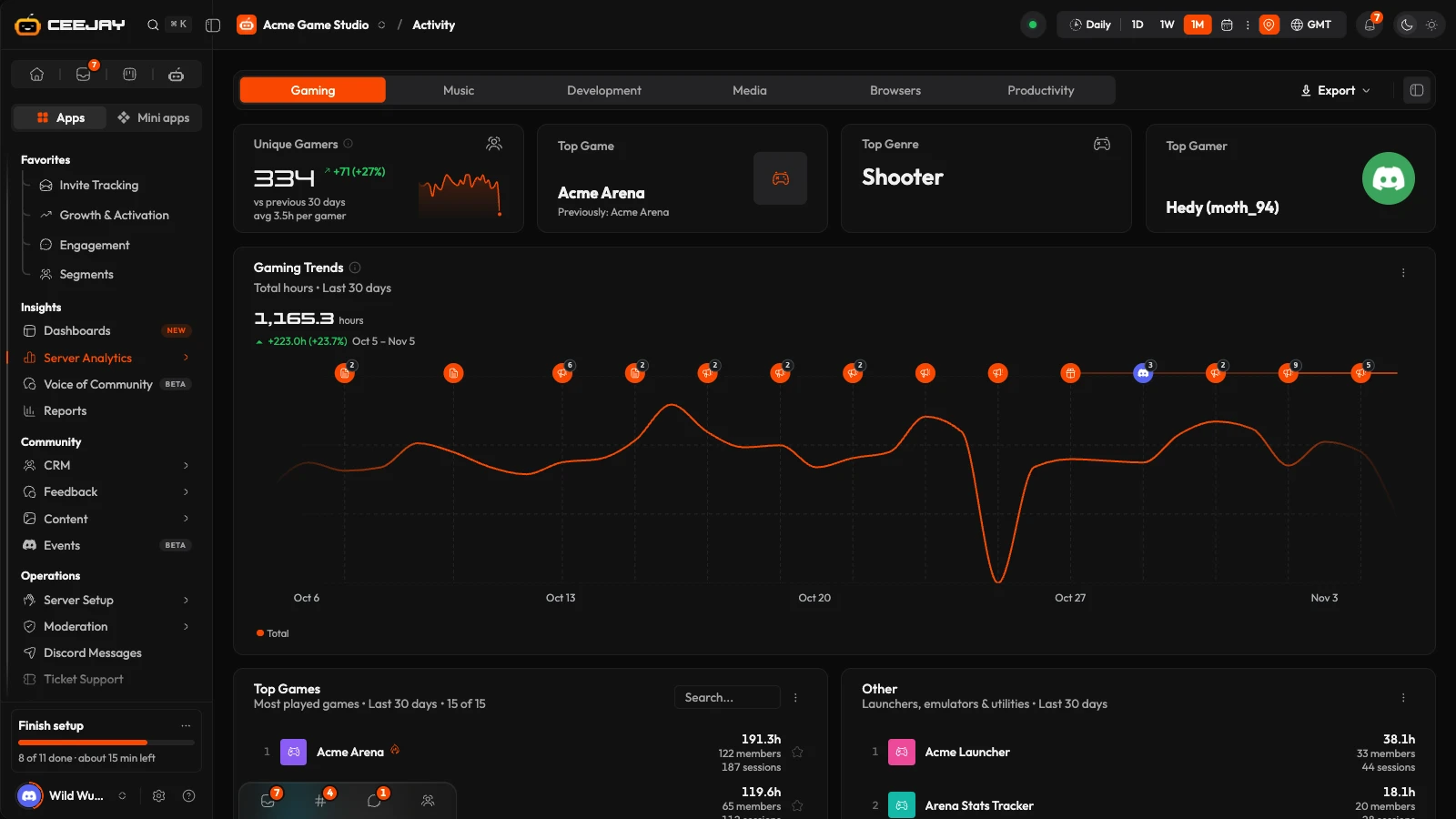
Each tab has the same layout: stat cards, a trend chart, lists of items, and a leaderboard of members.
| Tab | Covers | Lists |
|---|---|---|
| Gaming | Games | Top Games and Other (launchers, emulators and utilities) |
| Music | Listening, such as Spotify | Top Artists and Top Tracks |
| Development | Code editors and developer tools | Development Tools |
| Media | Streaming and media apps | Media & Streaming |
| Browsers | Web browsers | Browsers |
| Productivity | Productivity apps | Productivity Apps |
If nothing at all was tracked in the range, the page says "No activity in this range". Try a longer range.
The stat cards
The first card on each tab counts members: Unique Gamers, Unique Listeners, Active Devs, or Active Users (on Media, Browsers and Productivity). It is the number of members who used something in that category in the range, with the average time per member beneath it and the change against the period before. The other cards name the top item:
- Gaming: Top Game, Top Genre and Top Gamer.
- Music: Top Artist, Top Track and Top Listener.
- Development: Top Tool and Active Tools.
- Media, Browsers and Productivity: Top App (Top Browser on Browsers) and Active Apps (Active Browsers on Browsers).
Most of the top-item cards name the previous period's top item under it, for example "Previously: ...".
The trend chart
Gaming Trends, Music Trends, Development Trends, Media & Streaming Trends, Browser Trends or Productivity Trends shows total hours over time. The description says "Total hours" and the range. Above the chart are the total hours for the range and the change against the period before. The Compare setting in the header does not add a line to these charts.
Open the chart's ⋮ menu to add up to five single items as extra lines, for example Choose games or Choose artists. On the Music tab you can also choose songs with Choose songs. Clear all removes them.
The lists
Each list shows the item, its time, how many members used it and how many sessions that was. A list with a single member shows "1 member" above its session count, so you can see when all the sessions come from one member.
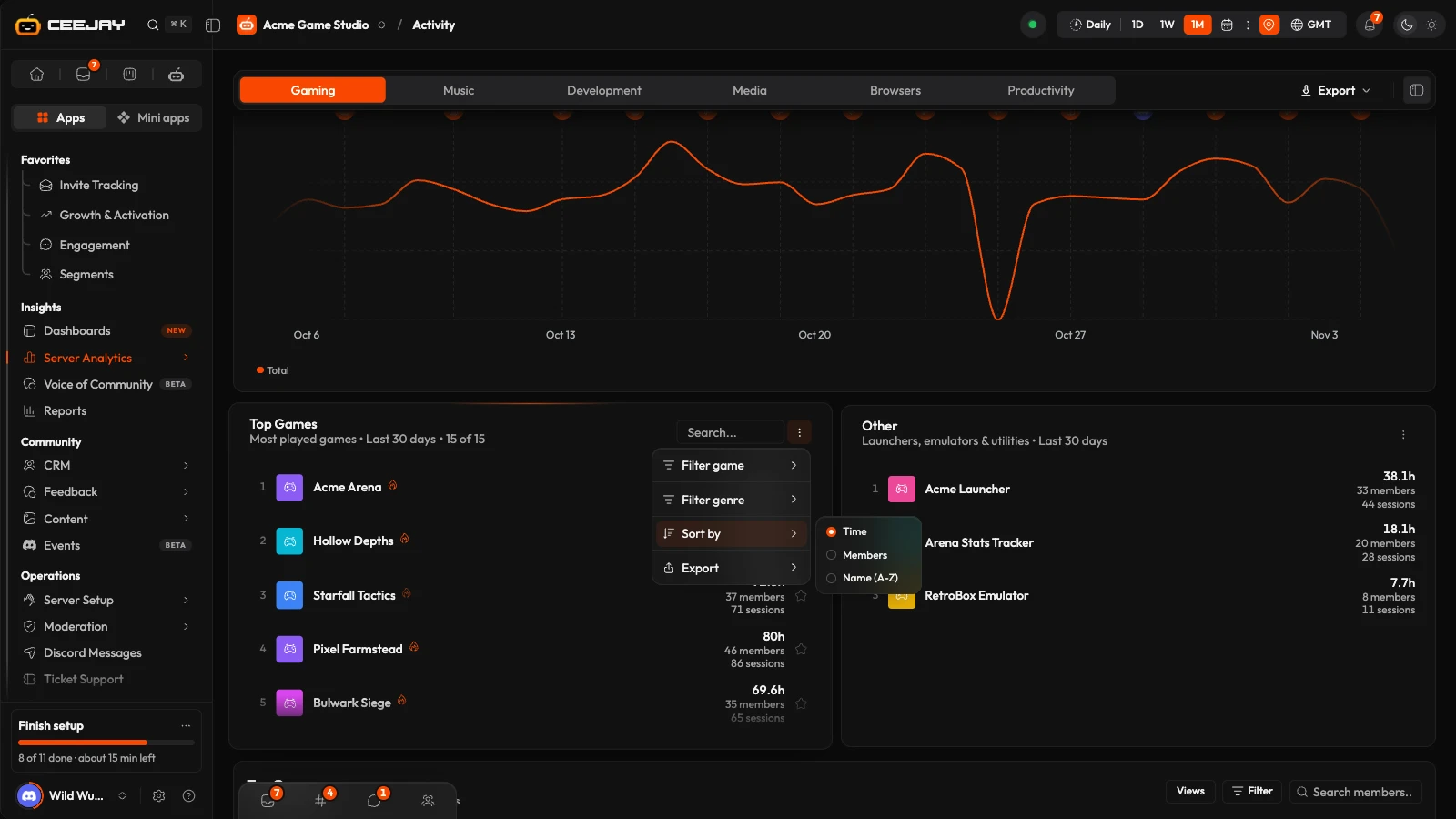
- A search box appears once a list has more than five items. The ⋮ menu beside it holds the filters where there are any, for example Filter game and Filter genre, or Filter artist on Top Artists.
- In the same menu, Sort by offers Time, Members or Name (A-Z).
- Press a star to add an item to your favourites. The menu then offers Favorites only, which limits the list to them, and Track favorites in chart, which draws them on the trend chart. Favourites are saved in your browser, so a colleague on another computer does not see them.
- Press an item to see its top 50 members, with their Hours and Sessions.
- Next to a game that has outside data, a small flame shows a Popularity score out of 100 when you hover or tap it. The score is put together from sources such as Steam players, reviews and IGDB. View on IGDB → in that panel searches IGDB for the game.
- Export in the same menu offers CSV, PNG (Dark) and PNG (Light).
Member leaderboards
At the bottom of each tab, a table of members ranks them by time: Top Gamers, Top Listeners, Top Developers, Top Viewers, Top Browser Users and Top Productive Members. It shows each member's top items, their Hours, Avg session, Sessions, how many different items they used, their all-time message count (Msgs) and their Roles. Press a column heading to sort.
- Search members... finds a member by name.
- Filter opens Filter Members: pick an Activity Name to show only members who played or listened to it, and set a Minimum Hours or Minimum Sessions.
- Views keeps a set of filters under a name. After you filter, Save current filters as view saves it, and pressing a saved view applies it.

