

Demographics
See roughly where your active members are in the world, and how your international channels compare.
Demographics estimates which part of the world your active members are in, shows when they are active, and, once you mark your international channels, compares those channels with the rest of the server. It follows the range picker in the header. It does not take the channel and role filters.
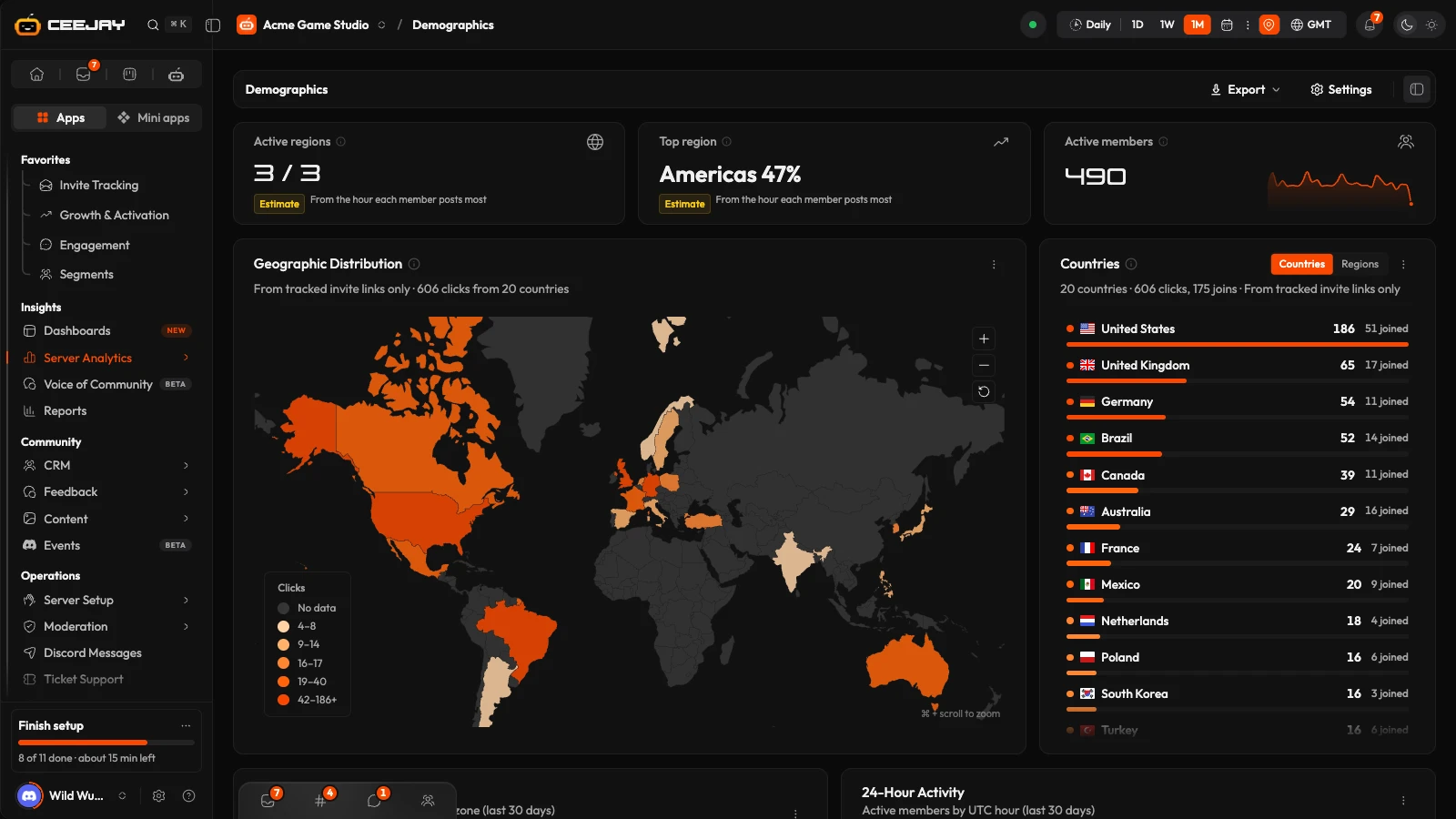
Discord does not tell CEEJAY where members live, so the regions here are estimates. Each estimate carries an Estimate chip saying "From the hour each member posts most".
How regions are estimated
CEEJAY looks at the hour of the day (in UTC) at which each active member posts most in the range, and sorts them into one of three regions:
| Hour (UTC) | Region |
|---|---|
| 00:00 to 06:59 | Asia & Pacific |
| 07:00 to 12:59 | Europe & Africa |
| 13:00 to 23:59 | Americas |
Someone who posts at odd hours, shares an account, or plays far from home can land in the wrong region. Treat the regions as an estimate of when your community is active.
What you see
- Three stat cards.
- Geographic Distribution: a map and a country list.
- Community Regions and 24-Hour Activity.
- If you have marked international channels: four more cards, Channel Breakdown, Top Contributors, Intl vs Server Engagement and Cross-Pollination.
The stat cards
| Card | What it counts |
|---|---|
| Active regions | How many of the three regions have at least one active member in the range, shown as "2 / 3". |
| Top region | The region with the largest share of active members, for example "Americas 54%". |
| Active members | Members who sent at least one message in the range, each counted once. Time in voice on its own does not count. Channels you hide from analytics are left out. |
Geographic Distribution
The same map as on Growth. It shows where invite link clicks came from, by country. It is not where members live. Press Countries or Regions to change the list beside it. It needs URL invite tracking, and says so while it has no data.
Community Regions and 24-Hour Activity
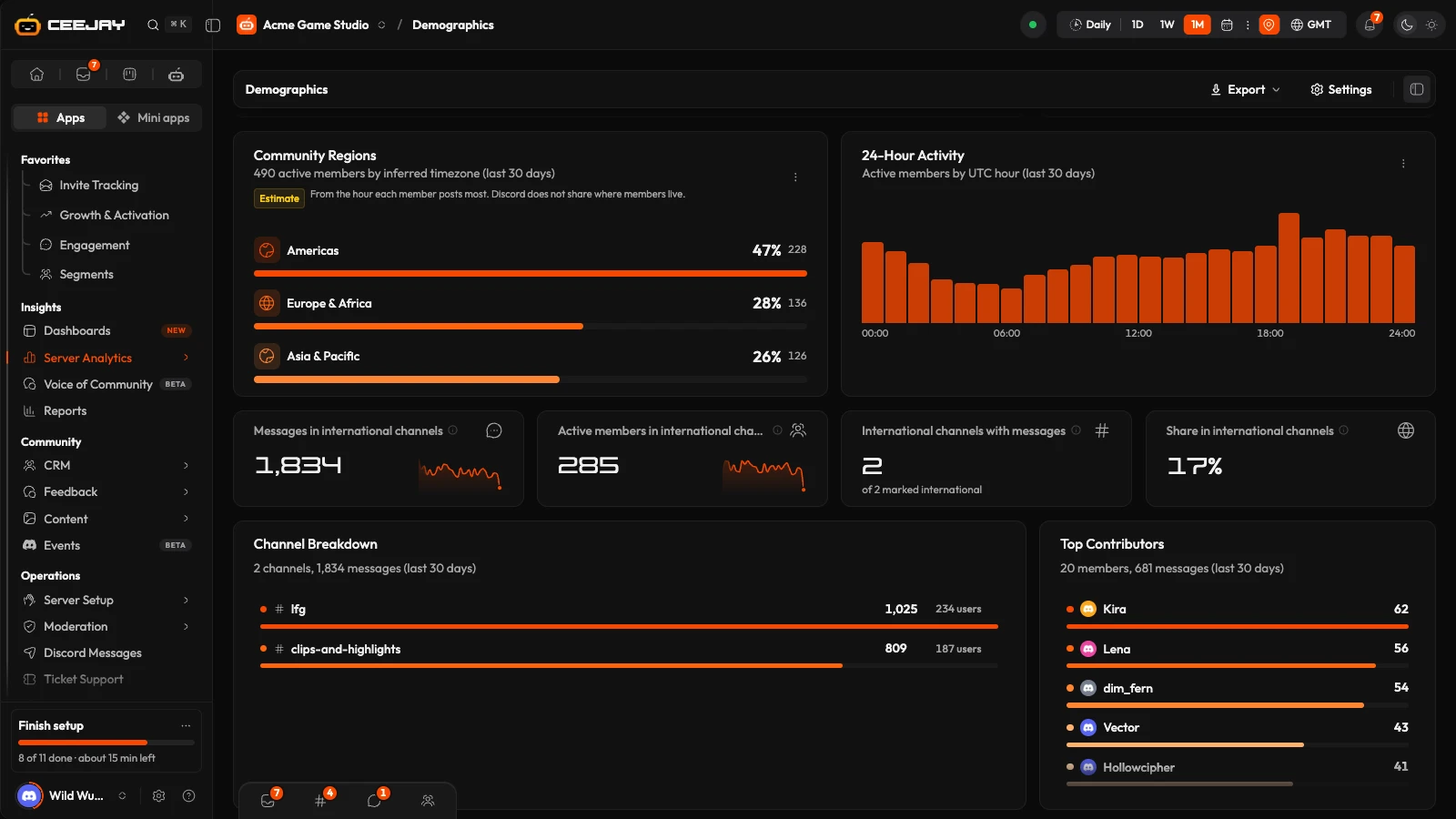
- Community Regions shows each region with its share of active members as a percentage, a bar and the member count.
- 24-Hour Activity shows active members for each hour of the day. The hours are always UTC, whatever timezone you chose in the header, so you can line it up with the region table above. Hours with 10% or less of the busiest hour's active members are drawn in red and listed as Dead zones: the stretches of the day when very few members are active.
International channels
Mark the channels that serve your international members, and the lower half of the page appears. Until then the page says "No international channels configured".
Open Settings → Insights → Demographics, or press Settings at the top of this page.
In International Channels, switch on each channel that is for your international community. Only text channels are listed. Select Suggested switches on every channel tagged Auto-detected, which means its name contains a language, country or region such as "spanish" or "latam". Those channels are listed first, then the rest with the busiest first.
Save from the bar at the bottom of the page. The cards fill in on the next refresh.
What the page then shows, for the range:
| Card | What it counts |
|---|---|
| Messages in international channels | Messages sent in the channels you marked. Channels hidden from analytics are left out. |
| Active members in international channels | Members who sent at least one message in a marked channel, each counted once. |
| International channels with messages | Marked channels with at least one message, out of all you marked. |
| Share in international channels | Messages in marked channels as a share of every message in the server. Channels hidden from analytics are left out of both. |
Then:
- Channel Breakdown: message volume for each marked channel.
- Top Contributors: the most active members in those channels.
- Intl vs Server Engagement: messages per user in the international channels against the server average, and the retention rate of international members against all members. Retention here is the share of joins in the range that did not leave in it. Intl Members counts only members who joined in the range and have posted in an international channel. All Members counts every leave in the range, including members who joined earlier, so it can fall below zero. Read the comparison as a rough guide.
- Cross-Pollination: the share of international members who also take part in your main channels, and how many are active in both or only in the international channels.

