

Announcements
See how many announcements you posted, how members reacted, and label each one by type.
Announcements looks at the posts in your Discord announcement channels and shows how members reacted to them. It follows the range and channel controls in the header. The role filter does not change it.
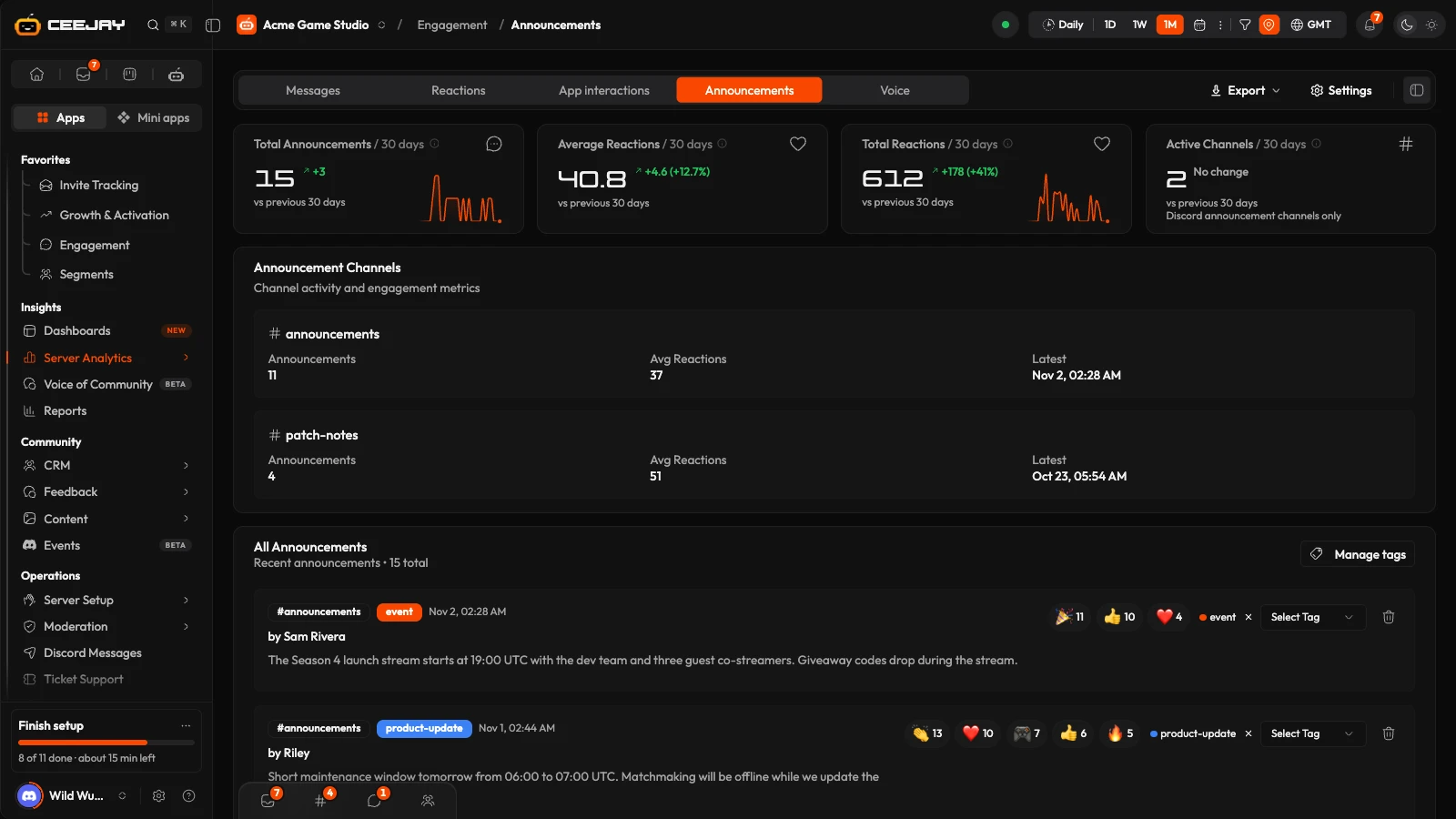
Only messages in channels of Discord's Announcement type count here. Ordinary text channels are not counted, even if you use them for news.
What you see
- Four stat cards.
- Announcement Channels: one block per channel.
- All Announcements: the posts themselves, with their reactions and tags.
The stat cards
Each card compares with the period before it.
| Card | What it counts |
|---|---|
| Total Announcements | Messages posted in your announcement channels in the period. |
| Average Reactions | Reactions per announcement, over the announcements posted in the period. With none posted, the card says "No announcements in this period". |
| Total Reactions | Reactions on the announcements posted in the period. |
| Active Channels | Announcement channels with at least one post in the period. |
With a channel filter on, the cards say "Selected channels only". Channels you hide from analytics are left out.
Announcement Channels
For every announcement channel with posts in the period: how many Announcements, the Avg Reactions per post, and the date of the Latest post. The card is hidden when no announcement channel had a post.
All Announcements
The newest 100 announcements in the period. Each shows:
- The channel, the tag (if it has one), the date and the author.
- The text, cut after 150 characters. Show more and Show less expand it.
- Its reactions, one chip per emoji with a count. When the emoji detail is not available you see the total reaction count instead.
- A Select Tag menu to label it, and a bin icon (Delete announcement).
Good to know
Delete announcement removes CEEJAY's copy of the post, with its tags and reactions. The post also stops counting in your message totals on other pages. It does not delete the message in Discord, and it cannot be undone here.
Tag announcements
Tags label announcements by type, for example "product-update" or "event", so you can find and compare them.
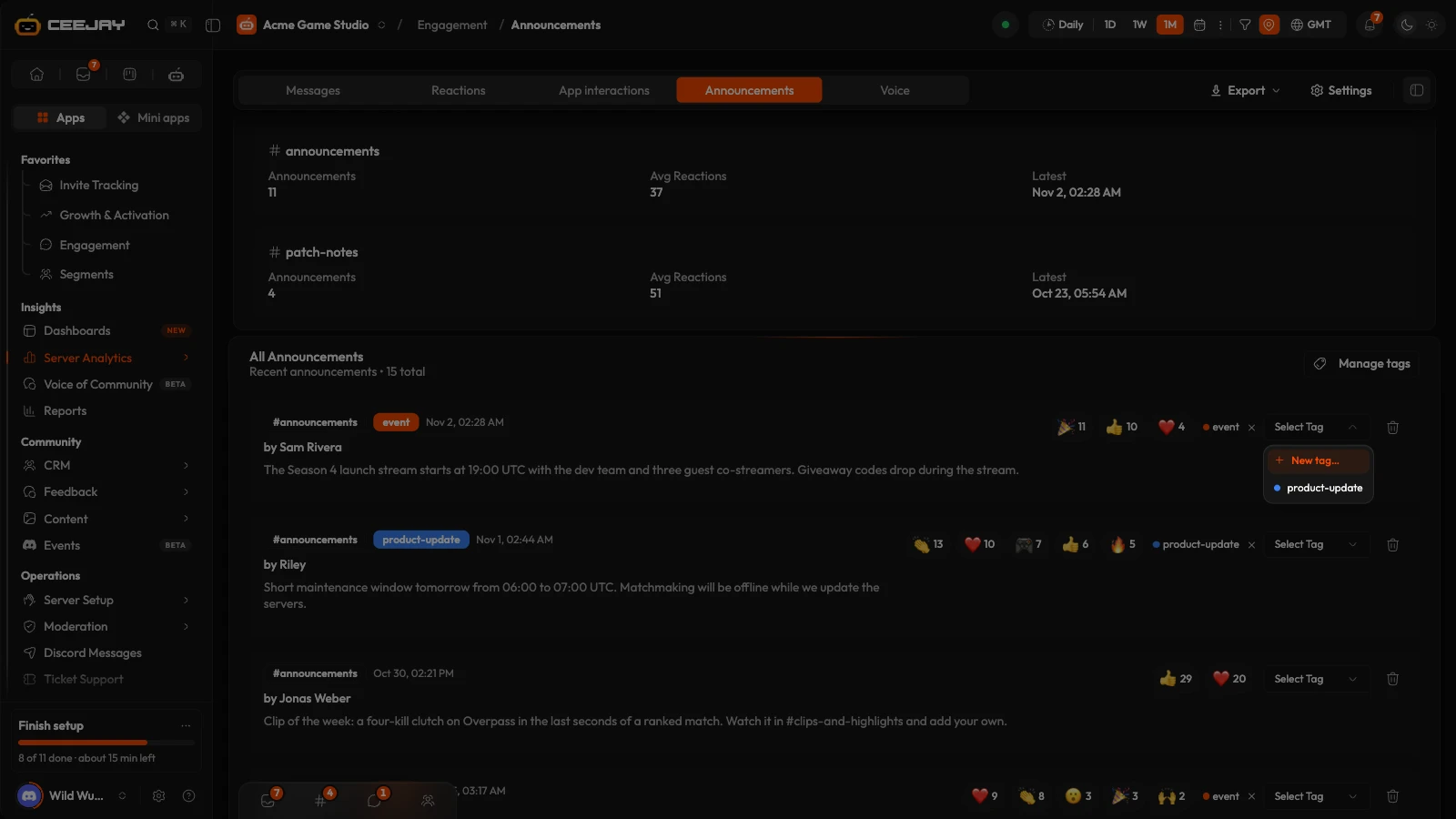
On an announcement, open Select Tag and pick a tag. To make a new one, choose New tag….
In New announcement tag, type a Name (up to 50 characters) and choose a Colour. Press Create tag. The tag is applied to the announcement you started from.
To take a tag off, press the small cross beside it on the announcement.
Manage tags (above the list) opens Settings → Insights → Announcements, under Announcement tags. There you see every tag, how many announcements carry it, and the date of its latest one. New tag makes a tag without applying it. Press a row to list its announcements, and change a tag from the list or choose Remove tag. Edit tag renames a tag or changes its colour and keeps it on every announcement that has it. A tag can also be deleted. Deleting a tag removes it from its announcements but leaves the announcements alone.

