

API keys and webhooks
Connect your game, website or store: create a key so your tools can read and write in your community, and add an endpoint URL for CEEJAY to call.
API keys and webhooks are the two ways your own software talks to CEEJAY. A key lets a tool, such as a game server, do things in your community. A webhook makes CEEJAY call your endpoint URL when something happens. This page shows how to set up both in the dashboard. The technical detail for developers is in the API reference.
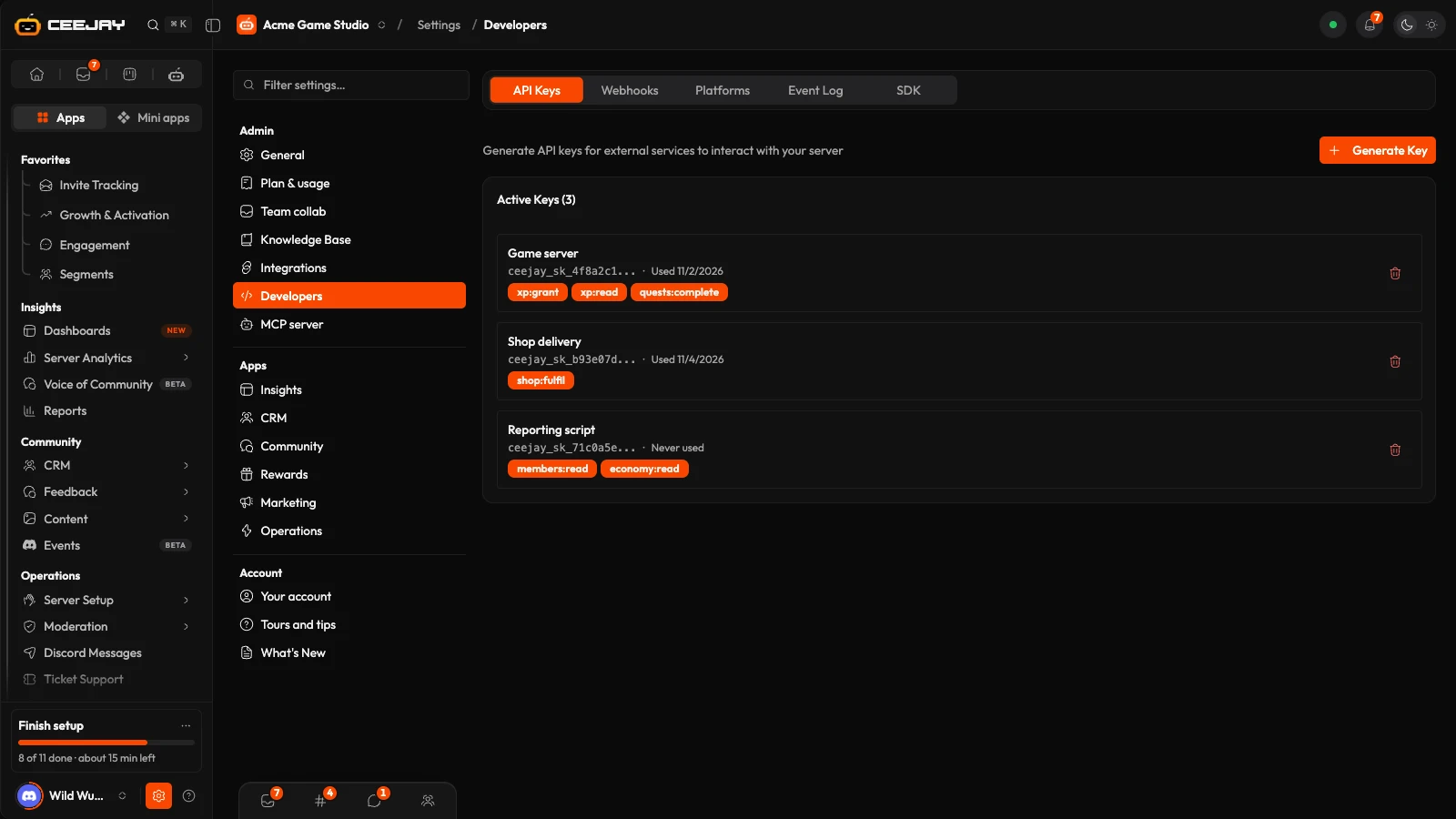
What you see
Go to Settings → Developers. Five tabs sit at the top:
- API Keys: the keys your tools use.
- Webhooks: the endpoint URLs CEEJAY calls.
- Platforms: your own game or app, added so it can link members' accounts.
- Event Log: events sent and received by your integrations and webhooks.
- SDK: the code library for your server and your game.
Connecting Jira, ClickUp, GitHub or Slack is on another page: see Connected Apps.
Good to know
Anyone whose team can open Integrations can open Developers and create and revoke keys and webhooks. Give that page only to team members you trust with it. See Team management.
API keys
A key belongs to your community only. Your tool sends it with each request, and CEEJAY knows which community it is for.
Create a key
Go to Settings → Developers → API Keys and press Generate Key.
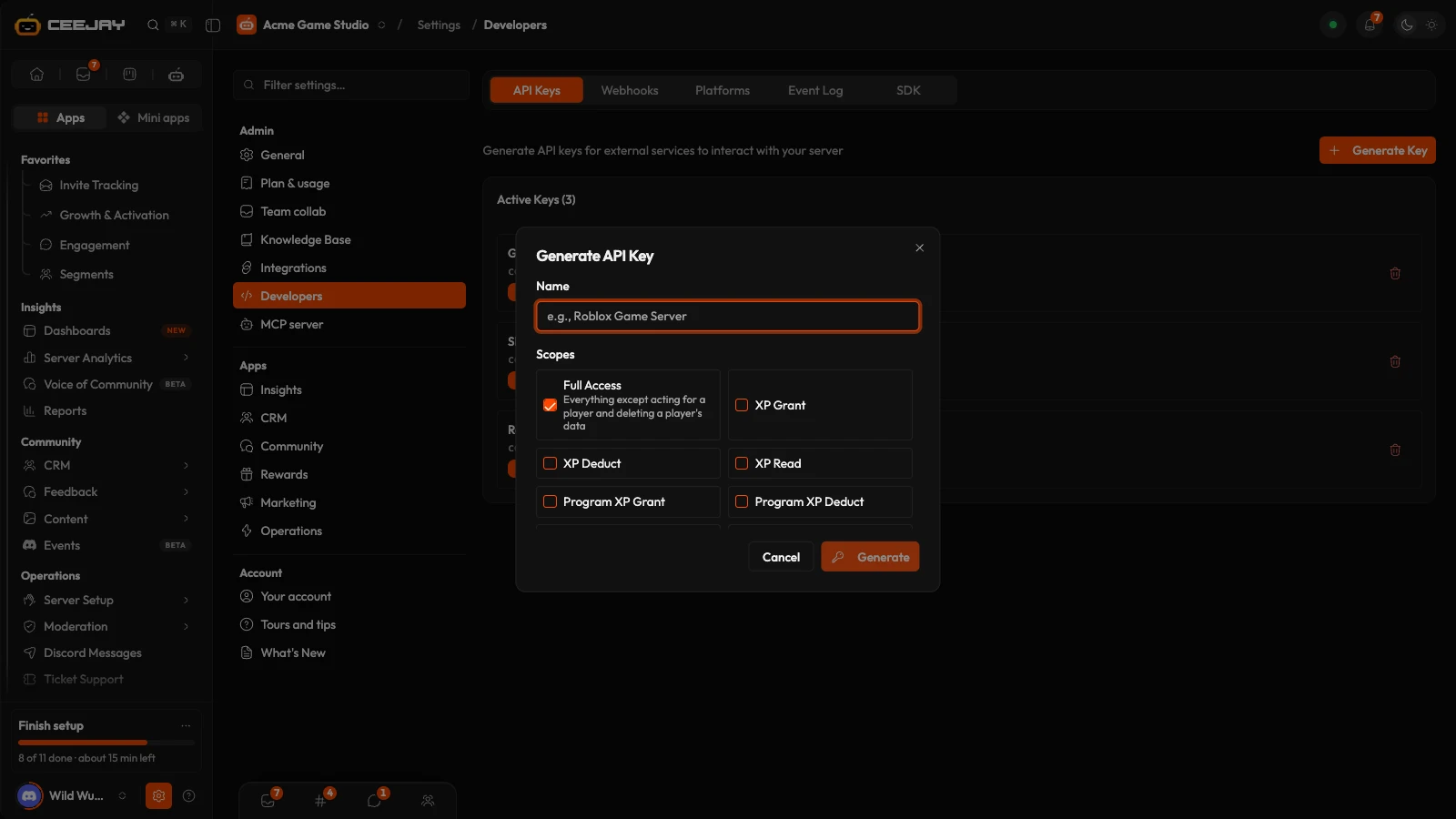
Type a Name that says what will use the key, such as Game Server. The name is only for you.
Under Scopes, tick what the key may do. Full Access is ticked when the window opens, and ticking any other scope turns it off. Give each tool the fewest scopes that work. A key needs at least one scope: with none ticked, Generate is greyed out and the window says Tick at least one scope to generate a key.
Press Generate. The window closes, and the new key appears on the page with the message Copy your API key now — it won't be shown again. Press the copy button and store the key where your tool can read it.
The key is shown once
CEEJAY stores only a hash of the key and cannot show it again. If you lose it, generate a new key, update your tool to use it and revoke the old one. Never post a key in Discord or commit it to a public repository.
Your tool sends the key as Authorization: Bearer followed by the key. Authentication has the exact format, and the Quickstart makes a first request.
Scopes
A key can only do what its scopes allow. A request that needs a scope the key does not have is refused.
| Scope | What a key with it can do |
|---|---|
| Full Access | Everything below. Use it for testing, not in production. |
| XP Read | Read a member's XP and level. |
| XP Grant and XP Deduct | Grant or deduct XP. |
| Program XP Grant and Program XP Deduct | Grant or deduct XP inside one of your programs. |
| Read programs | List your programs, so a tool can find the one to give program XP in. |
| Quests Read | List quests. |
| Quests Complete | Mark a quest complete for a member and grant its rewards. |
| Economy Read | Read currency balances. |
| Economy Grant and Economy Deduct | Grant or deduct currency. |
| Roles Manage | List your Discord roles, and assign and remove them. |
| Members Read | Read member profiles, XP, balances and linked accounts. |
| Members Link | Link a member's account on another platform to their Discord user. |
| Events Emit | Send your own events to your webhooks. |
| Messages Send | List your channels, and send messages and embeds to them. |
| Confirm shop deliveries | List shop purchases pending fulfilment on your server, and report each as fulfilled or failed. |
Every key can also ask CEEJAY which community it belongs to and which scopes it has. That needs no scope.
Look after your keys
Active Keys lists each key with its name, the start of the key (such as ceejay_sk_4f8a2c1...), Never used or the date it was last used, and its scopes. A key with more than five scopes shows the first five and a count of the rest.
To revoke a key, press the bin on its row. It stops working on the very next request and leaves the list. There is no confirmation and no undo: if you revoked the wrong key, generate a new one.
To rotate a key without downtime, generate the new one first, update your tool to use it, then revoke the old one. Both keys work until you revoke the old one.
Access tokens for AI agents are separate. This tab does not list them, and they are revoked on their own page. See AI agents.
Webhooks
An outbound webhook makes CEEJAY send a request to your endpoint URL each time something you chose happens. Use it to update a spreadsheet, tell your game server about a new member or start a job of your own.
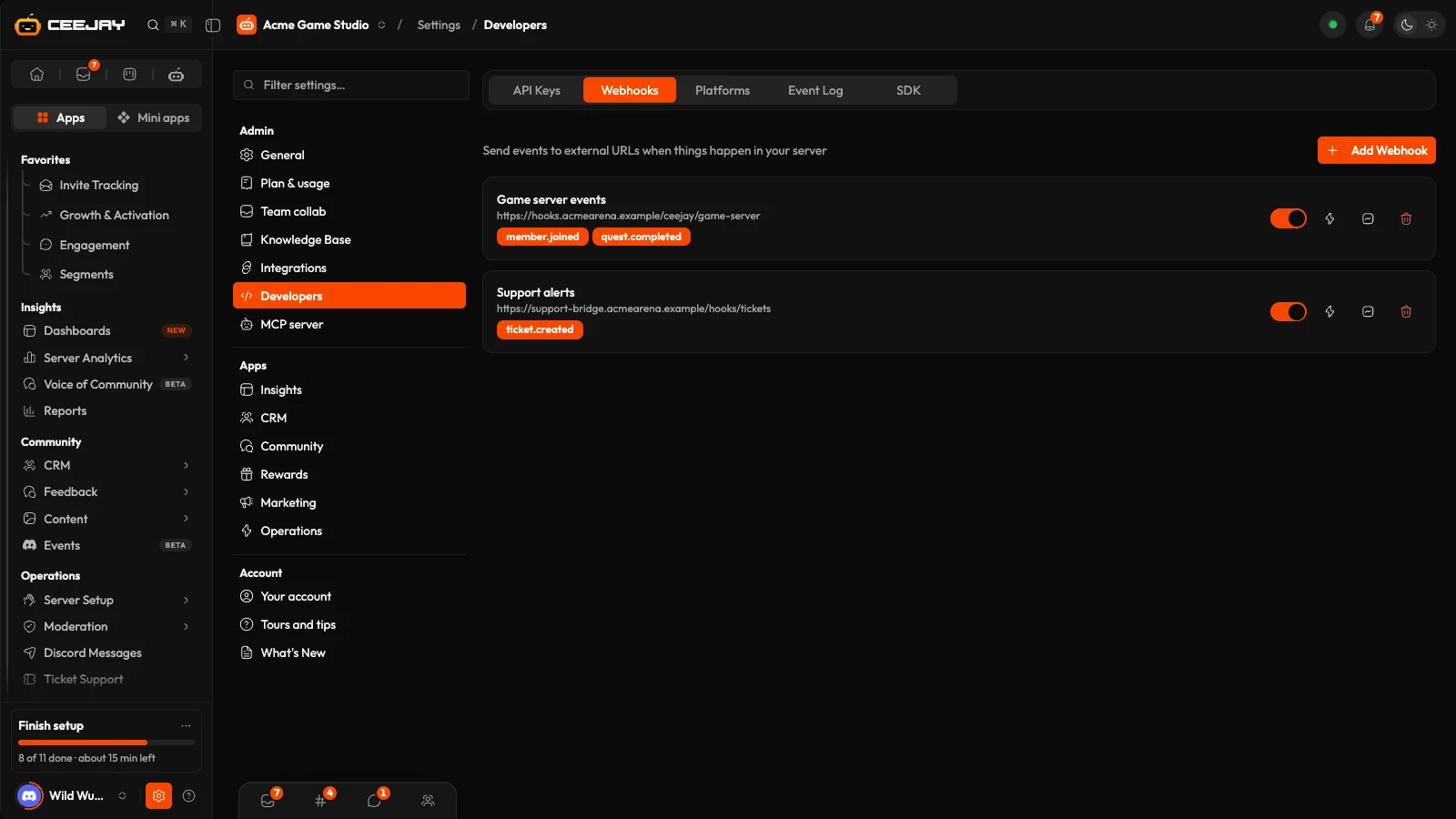
Add a webhook
Go to Settings → Developers → Webhooks and press Add Webhook.
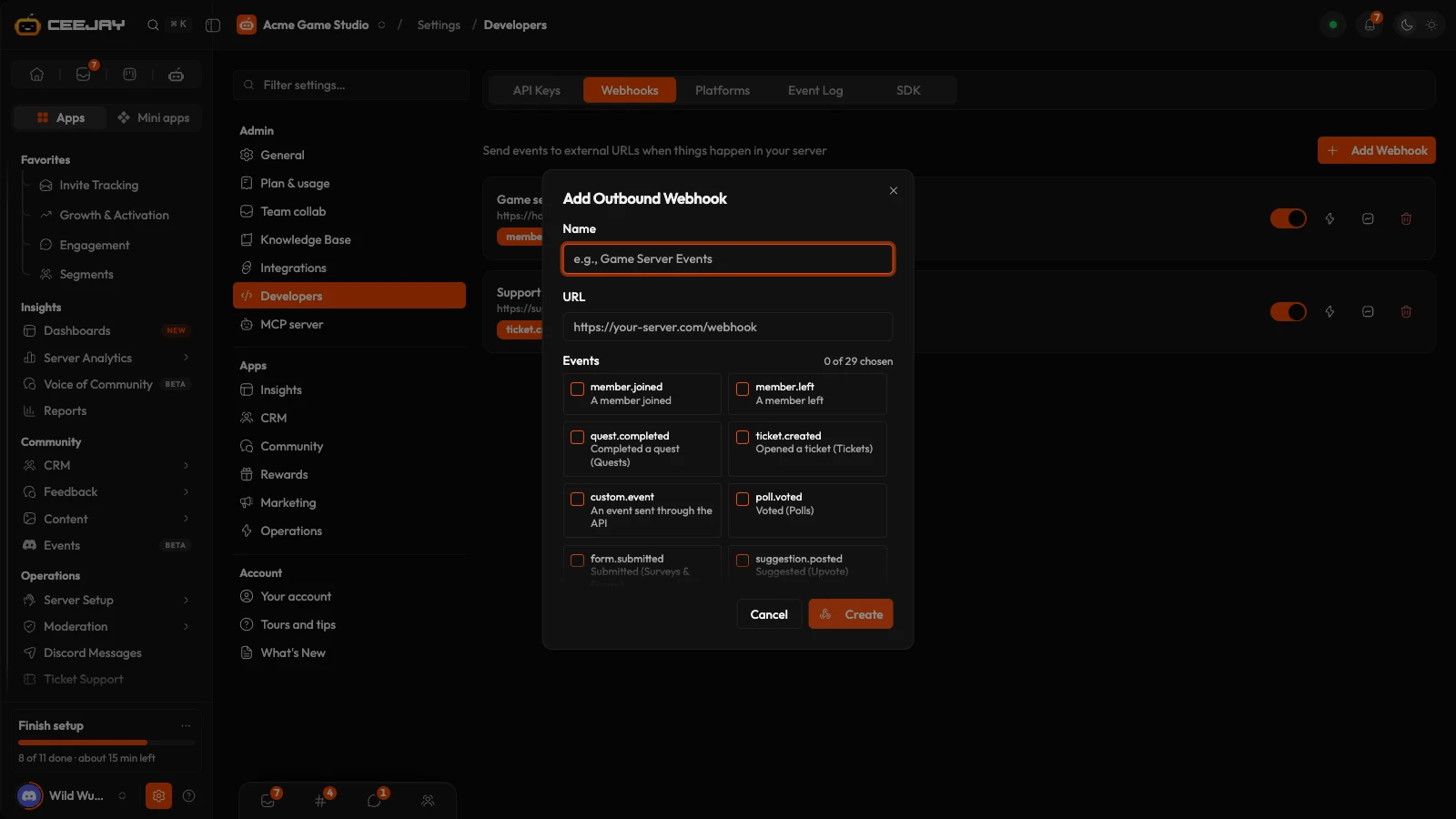
Type a Name for your own reference, such as Game Server Events, and the URL CEEJAY should call. It must be a public https:// URL. The name can be up to 100 characters and the URL up to 500.
Under Events, tick the events you want. The counter shows how many are chosen. Create is greyed out until you have a name, a URL and at least one event.
Press Create. The webhook appears in the list, switched on, and its signing secret is shown above the list. Copy it now.
The signing secret is shown once
The message reads Copy the signing secret for your webhook's name now — it won't be shown again. It shows the secret with a copy button, and the note: "Your server uses it to check that a delivery really came from CEEJAY. If you lose it, delete the webhook and add it again." The message disappears when you open Add Webhook again, and the list never shows the secret. A secret cannot be replaced: to get a new one, delete the webhook and add it again.
If the URL is rejected, the window stays open and a message tells you why: Could not add the webhook, with one of these reasons:
- "The URL must start with https://"
- "That is not a full web address. It should look like
https://example.com/webhook" - "The URL cannot contain a username or password"
- "That address is on a private or internal network. Webhooks can only be sent to a public address."
- "We could not find that address. Check the URL and try again."
CEEJAY never follows a redirect. If your endpoint responds with a redirect, the delivery counts as failed, so enter the final URL.
You cannot edit a webhook after it exists. To change its URL or its events, add a new one and delete the old one.
Events
Each choice shows the event name with a short label under it. These are always offered:
| Event | Label in the list | Sent when |
|---|---|---|
member.joined | A member joined | Someone joins your Discord server. Not sent when a bot is added. |
member.left | A member left | Someone leaves or is removed. Not sent when a bot is removed. |
quest.completed | Completed a quest (Quests) | A member completes a quest. |
ticket.created | Opened a ticket (Tickets) | A support ticket is opened. |
custom.event | An event sent through the API | Your own tool sends an event of its own. Its key needs the Events Emit scope. |
* | Every event | Every event CEEJAY can send. |
The list can also include an event for each thing a member does in one of your apps, such as voting in a poll or winning a giveaway. The developer reference lists every event and what it contains: see Webhooks.
Check that it works
Each webhook has four controls on its right. None of them has a text label:
- The switch turns the webhook on or off. Off means no events are sent.
- The lightning bolt sends a test event, named
test.ping, to the endpoint URL. It shows no message of its own. Look for the result in Recent Deliveries. - The pulse line opens Recent Deliveries: the latest deliveries with a tick or a cross, the event name, the HTTP code your endpoint returned, how long it took in milliseconds and when. A cross with no HTTP code means your endpoint did not respond at all. The list loads when you open it, so close and open it again to see a new test.
- The bin deletes the webhook immediately, with no confirmation.
When deliveries fail
A red badge such as 3 failures counts consecutive failed deliveries. After 10 consecutive failures, CEEJAY switches the webhook off so that it stops calling an endpoint that is down. Fix your endpoint, then turn the switch back on. Turning it back on clears the count and the last error, so the webhook gets ten more consecutive failures before it is switched off again. A successful delivery clears the count too.
What your server receives
CEEJAY sends a POST with a JSON body. The event name is in the X-CEEJAY-Event header. Each delivery also includes its own ID, an attempt number, the time it was signed and a signature, in X-CEEJAY-Delivery, X-CEEJAY-Attempt, X-CEEJAY-Timestamp and X-CEEJAY-Signature-V2. The signature is made with the webhook's signing secret, so your server can check that a delivery really came from CEEJAY and is not a replay. The signature CEEJAY sent before, X-CEEJAY-Signature, is still sent beside it, so a server that checks it keeps working. Return a 2xx status within five seconds, and process the event after responding. The developer reference has the full body, the signature check and examples: see Webhooks.
Platforms
The Platforms tab adds your own game or app as a platform. Once it is there, your game or app can link a member's account to their Discord user through the API. Members cannot connect a custom platform themselves yet.
Go to Settings → Developers → Platforms and press Add Platform.
Type a Display Name, such as Dragon Quest Online. CEEJAY fills in the Slug from it, in lower-case letters, digits and underscores, and you can change it. Pick a Color for the platform's card.
Leave Auth Mode on API Link. OAuth cannot be chosen yet. Press Create.
Each platform's card shows its name, its Slug and API Link. The slug is the value your developer sends as platform when the game or app links an account: see Link an account. Two platforms cannot share a slug. The bin on a card deletes the platform immediately, with no confirmation.
Event Log
The Event Log tab lists the latest 20 events from your integrations, newest first: a tick or a cross, the event, whether it was inbound or outbound, the integration, a short summary and the time. Pick All, Success or Failed, then press Refresh: the list only changes when it reloads. When an integration delivery fails, CEEJAY also raises Integration delivery failed in your notifications.
SDK
The SDK tab contains what a developer needs to start: the TypeScript SDK, which turns each API request into one line of code, a link to the docs, and short examples for your server and for your game. The package shows Not published yet until it is released.

